Introduction
By default, Docker builds images for the architecture of the host machine. As a result, an image built on a Linux amd64 host may not run directly on an Apple Silicon arm64 machine, and vice versa.
Multi-architecture builds solve this by producing a single image tag backed by multiple architecture-specific images. Docker then automatically pulls the correct variant for the target host.
This guide walks through the full setup on WSL and macOS, followed by build, push, verification, and troubleshooting.
⚠️ Important Platform Note (Optional Reading)
Building an arm64 image on Linux/Windows amd64 hosts is not a native build path. It typically depends on Buildx with emulation (for example, QEMU) or a remote/native arm64 builder. Without that setup, arm64 builds may fail or produce inconsistent results.
⚠️ Windows Container Note (Optional Reading)
Linux container tooling on Linux/macOS/WSL does not directly build Windows container images. Building Windows images requires a Windows container environment and a Windows-capable Docker daemon/host.
Prerequisites
Before starting, make sure you have a working Docker runtime:
- WSL: Docker Desktop with WSL integration enabled.
- macOS: Colima (or Docker Desktop) and Docker CLI.
Windows Subsystem for Linux (WSL)
Assuming WSL is already installed with your preferred Linux distribution, install Docker Desktop for Windows and enable WSL integration in Docker settings.
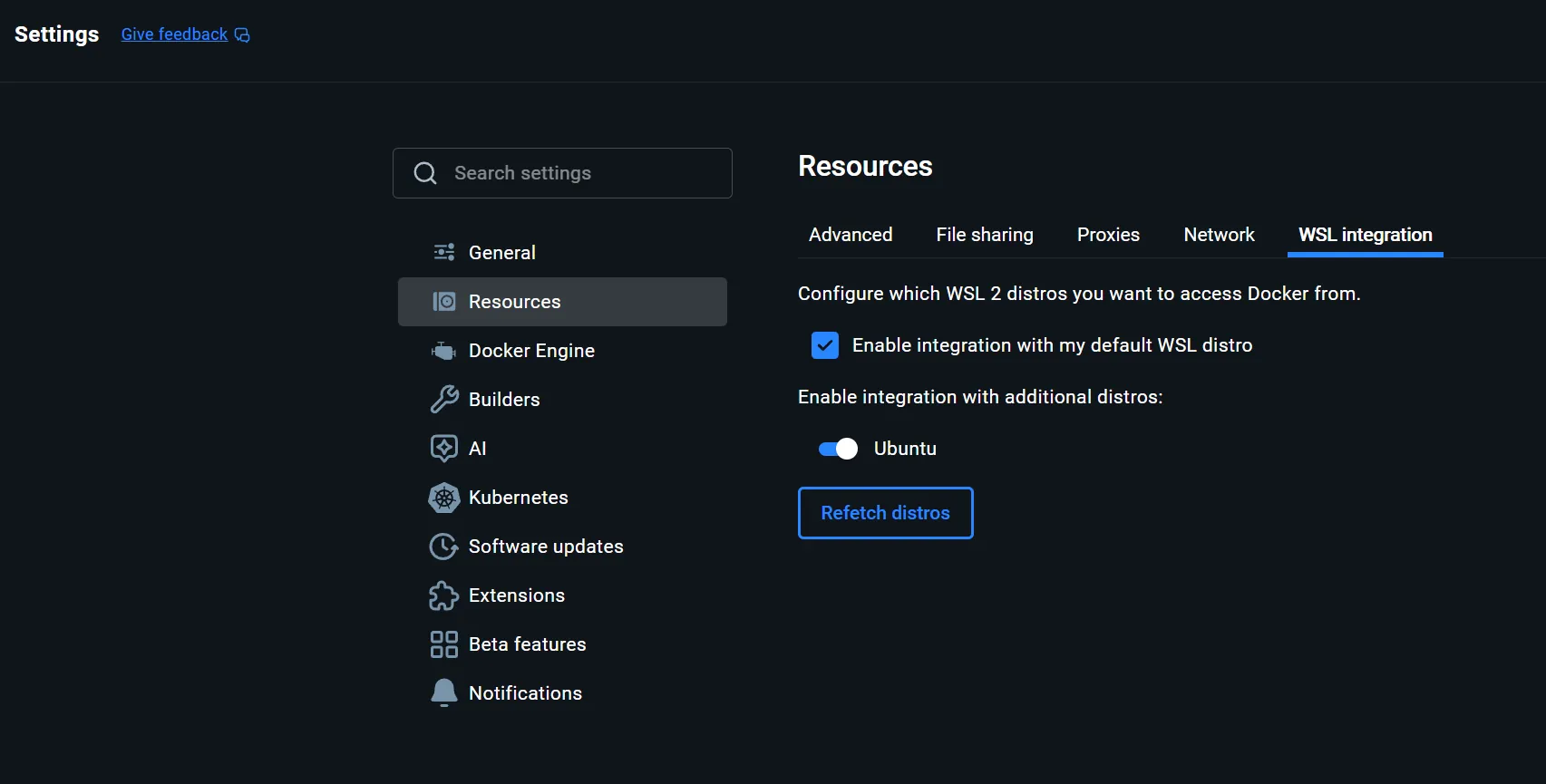
Then verify Docker is available inside WSL:
$ docker --version
Docker version 28.2.2, build e6534b4
ℹ️ Docker Desktop must be running in the background for WSL Docker commands to work.
macOS
Assuming Homebrew is installed, install Colima and Docker tools:
brew install colima
brew install docker docker-compose
You do not need the Docker Compose plugin specifically for multi-architecture builds, but it is useful for day-to-day local development.
Follow the on-screen instructions to add the Docker Compose plugin path to ~/.docker/config.json, so you can run docker compose instead of docker-compose.
"cliPluginsExtraDirs": [
    "/opt/homebrew/lib/docker/cli-plugins"
]
Configure Buildx for Multi-Architecture Builds
WSL
Ensure Docker Desktop is running and the WSL Docker CLI is connected:
$ docker context ls
$ docker info
Create and bootstrap a Buildx builder:
$ docker buildx create --name multiarch-builder --use
$ docker buildx inspect --bootstrap
The bootstrap output should list supported platforms.
macOS
Start Colima, then verify Docker connectivity:
colima start
docker context ls
docker info
Create and bootstrap a Buildx builder:
docker buildx create --name multiarch-builder --use
docker buildx inspect --bootstrap
If the builder already exists, switch to it:
docker buildx use multiarch-builder
ℹ️ Native vs Emulated Build Path (Optional Deep Dive)
In this context, a native build path means the target image architecture matches the CPU architecture of the machine that executes the build steps:
- Building
linux/amd64on anamd64builder host is native. - Building
linux/arm64on anarm64builder host is native.
If they do not match, Buildx typically relies on emulation (commonly QEMU) or forwards work to a different builder node that is native for that architecture.
This is why the same command may work in one environment and fail in another:
- It works when your active builder has native support for both targets or has emulation correctly installed.
- It fails when the builder lacks one target architecture and emulation is unavailable or misconfigured.
Use these checks to confirm your active path:
docker buildx ls
docker buildx inspect --bootstrap
Then verify that the builder reports both linux/amd64 and linux/arm64 under supported platforms.
If one platform is missing, you have two practical options:
- Install/enable emulation support on the current builder.
- Use a remote or separate native builder for the missing architecture.
Minimal Example Dockerfile
Create a simple Dockerfile:
FROM alpine:3.20
RUN uname -m > /arch.txt
CMD ["cat", "/arch.txt"]
This container prints its architecture, which makes validation straightforward.
Build and Push a Multi-Architecture Image
Sign in to Docker Hub:
docker login
Build and push one tag for both amd64 and arm64:
docker buildx build \
  --platform linux/amd64,linux/arm64 \
  -t ubaidsk/multiarch-demo:latest \
  --push .
Note: For multi-platform images, use
--push. A regulardocker imagesoutput does not show a complete multi-architecture manifest unless it is pushed (or explicitly exported).
Verify the Published Manifest
docker buildx imagetools inspect ubaidsk/multiarch-demo:latest
Confirm that both platforms are present:
linux/amd64linux/arm64
Pull and Run
On each machine, run:
docker run --rm ubaidsk/multiarch-demo:latest
Expected output:
- On
amd64hosts:x86_64 - On
arm64hosts:aarch64
⚠️ Common Issues and Fixes (Optional Troubleshooting)
-
Buildx is not initialized
- Run
docker buildx inspect --bootstrap.
- Run
-
Push is denied
- Verify
docker loginsucceeded and your repository/tag is correct.
- Verify
-
Cannot connect to Docker daemon
- WSL: confirm Docker Desktop is running and WSL integration is enabled.
- macOS: confirm
colima startcompleted successfully.
-
Only one architecture is visible
- Re-check
--platform linux/amd64,linux/arm64in the build command. - Re-run
docker buildx imagetools inspectto validate the manifest.
- Re-check
-
Trying to build Windows images from Linux/macOS
- This is not supported through a Linux container daemon.
- Use a Windows host configured for Windows containers.
Conclusion
With Buildx, you can publish a single image tag that supports both Intel/AMD (amd64) and Apple Silicon (arm64) environments.
Once runtime and Buildx are configured, the workflow is consistent across WSL and macOS. For teams working across mixed developer machines and CI environments, this significantly improves portability while keeping image distribution simple.